
Balancing with data tables
Put a game’s numbers in tables instead of in scattered Inspector fields: enemies by row, XP by level from a curve, totals by formula, all with a chart, and a game that follows every change while it plays.
Make a project: File → New Project (Ctrl+Shift+N), name it Balance, pick the Platformer template and Create.
A table of enemies
Section titled “A table of enemies”- Choose Data → New Table….
- In the Tables panel, click the heading of the one column (Value), then rename it to Health in the bar above the grid and set its type to whole number.
- Press Ctrl+A.
- Click the plus at the end of the headings to add a column, call it Damage and make it a dice column.
- Double-click a cell to type into it, or select it and press F2. Name the first row Slime, with 6 Health and 1d4 Damage.
- Add a row with the plus under the grid and fill in a Bat: 2 Health and 1 Damage.
A table is a spreadsheet for game data. Each column holds one kind of thing: numbers, whole numbers, text, yes or no, a choice from a list, dice, a sprite, a sound, a prefab, or a row of another table. A cell that does not fit its column is refused, and the panel says what the column takes.
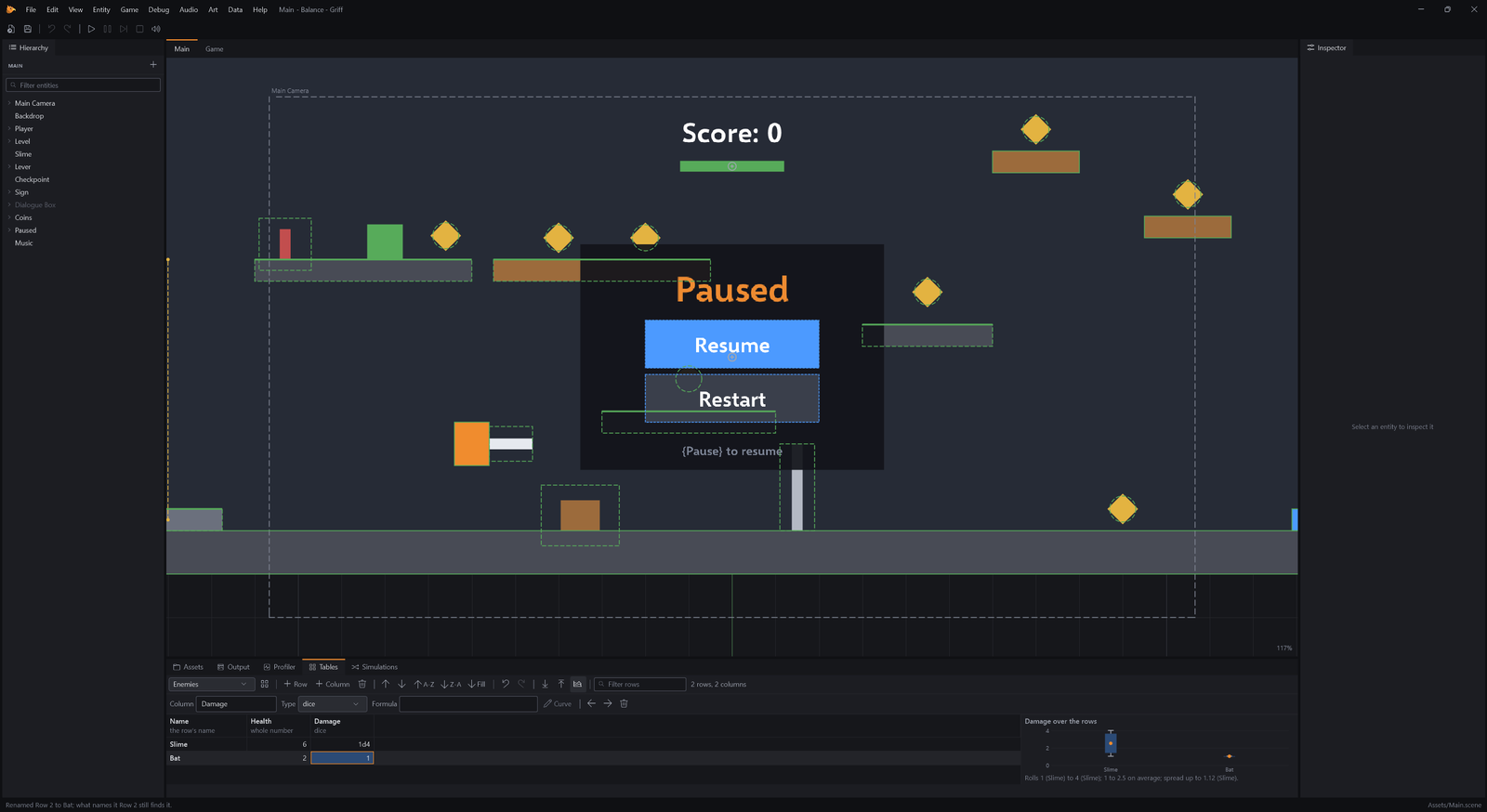
Every change is saved straight away, to a text file with a line for each row, so a change to one number is one line in git. Undo takes any change back.
From a spreadsheet
Section titled “From a spreadsheet”- Copy two rows from Excel or Google Sheets, select the next empty row’s name cell and press Ctrl+V.
- Press Ctrl+V.
Ctrl+V pastes the block at the selected cell, adding the rows it needs. Ctrl+C copies cells back out, headings too, ready to paste into a sheet, and Data, Import and Export CSV work with whole files.
Enemies from a row
Section titled “Enemies from a row”- Select Slime in the Hierarchy.
- Click Add Component and add Table Values.
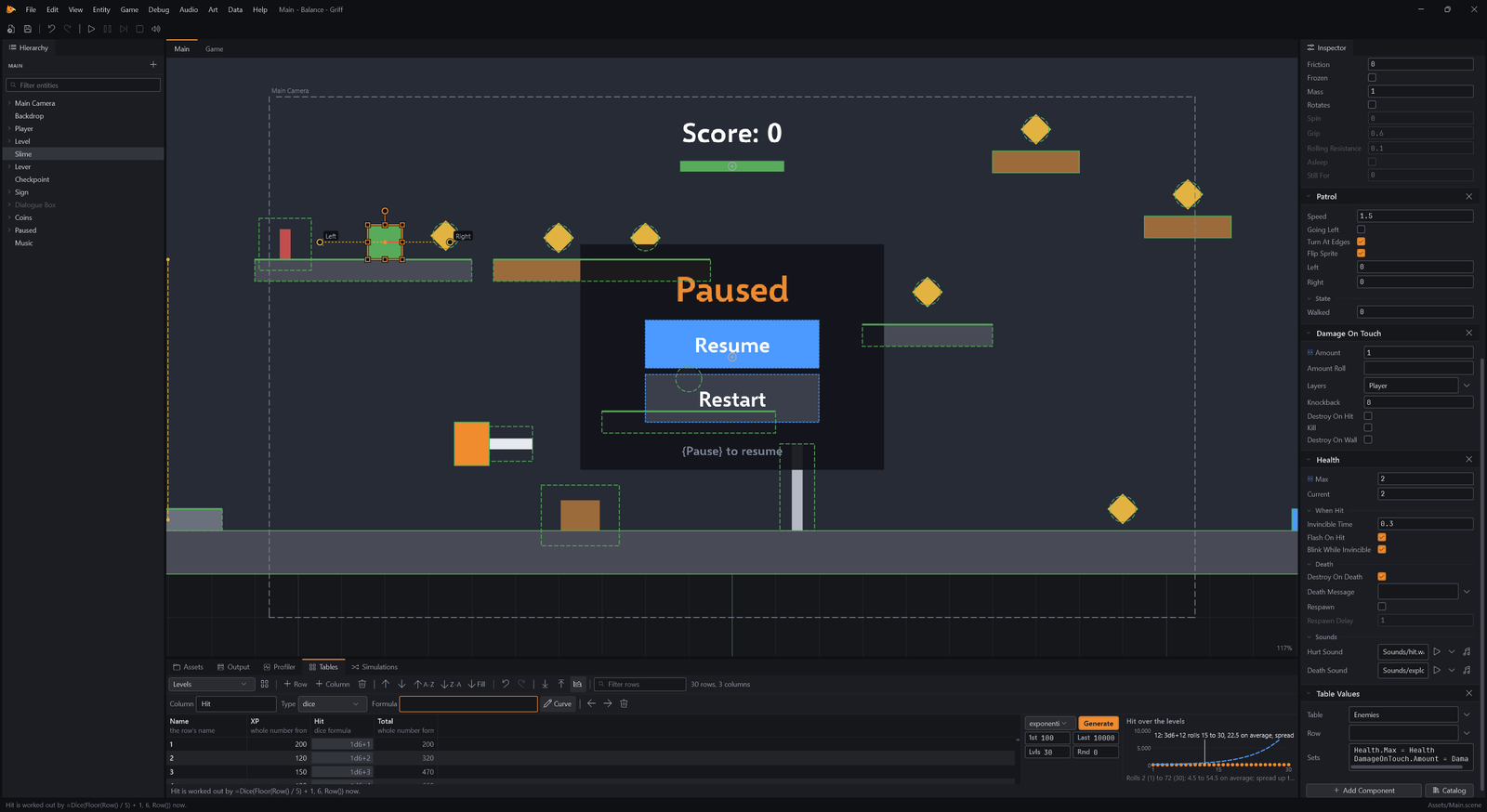
- In the Inspector, set Table Values → Sets to
Health.Max = Health\nDamageOnTouch.Amount = Damage.
A Table Values component gives an entity’s other components their numbers from a row. Each line of Sets names a property and the column it takes from. With Row empty, it takes the row named like the entity, which is why the template’s Slime gets the Slime row.
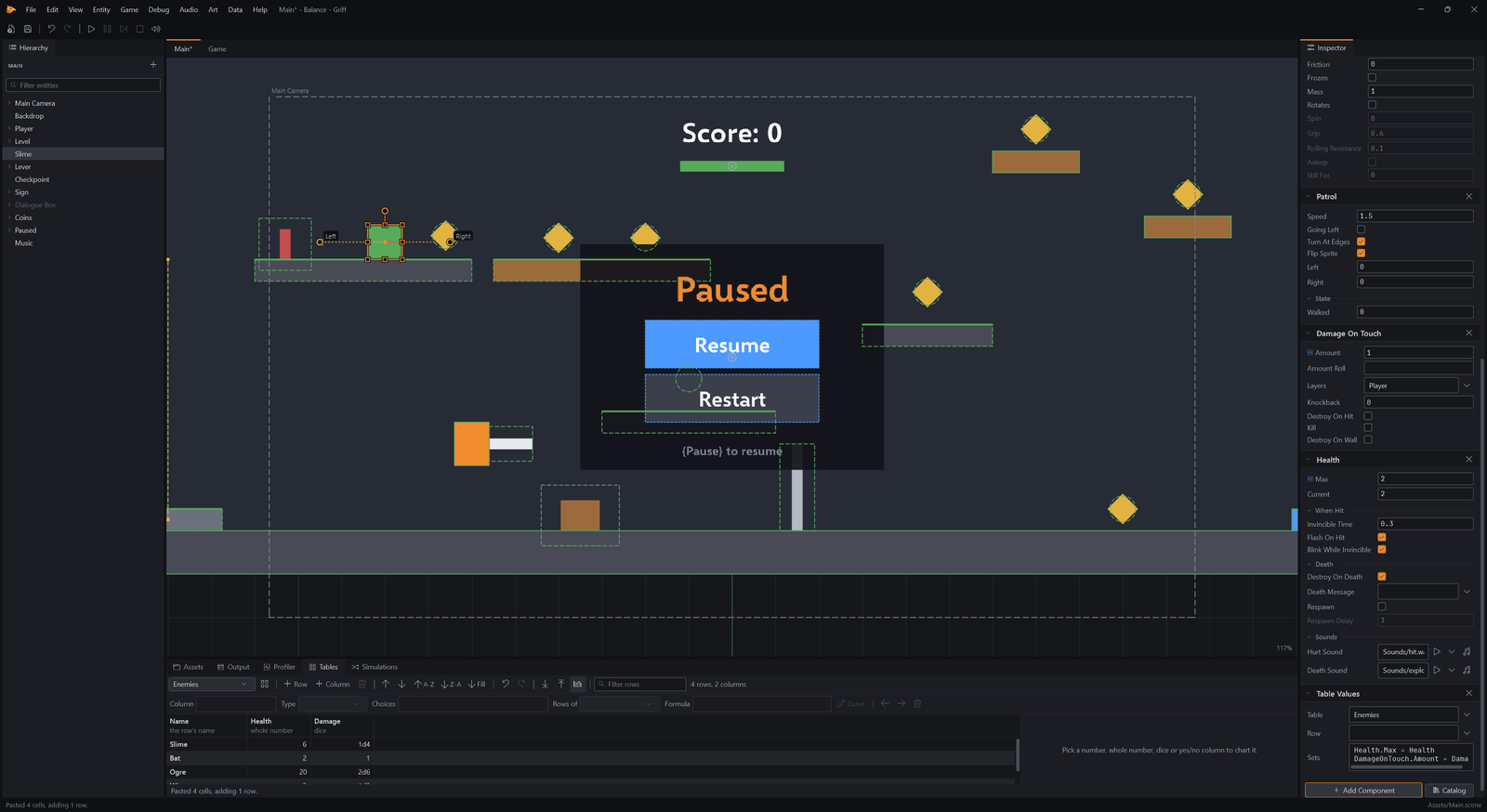
- Press F5 to play.
Change a number in the table while the game runs and it reaches the game as its next step begins, so balancing is quick to try: tune, look, tune again. Stop puts the game back, and the table keeps what you typed.
- Press Shift+F5 to stop.
Levels from a curve
Section titled “Levels from a curve”- Choose Data → New Table….
- Press Ctrl+A.
- Click Curve. The curve editor opens beside the chart. XP to the next level usually grows by the same share each level, so it starts out exponential. Set the last value to 50000, the levels to 30 and Round To to 10.
The chart draws the curve it would make: 100 at level 1 to 50,000 at level 30, rounded to tens. Linear, power, exponential and S-shaped curves are there, and so are points you draw on the chart yourself.
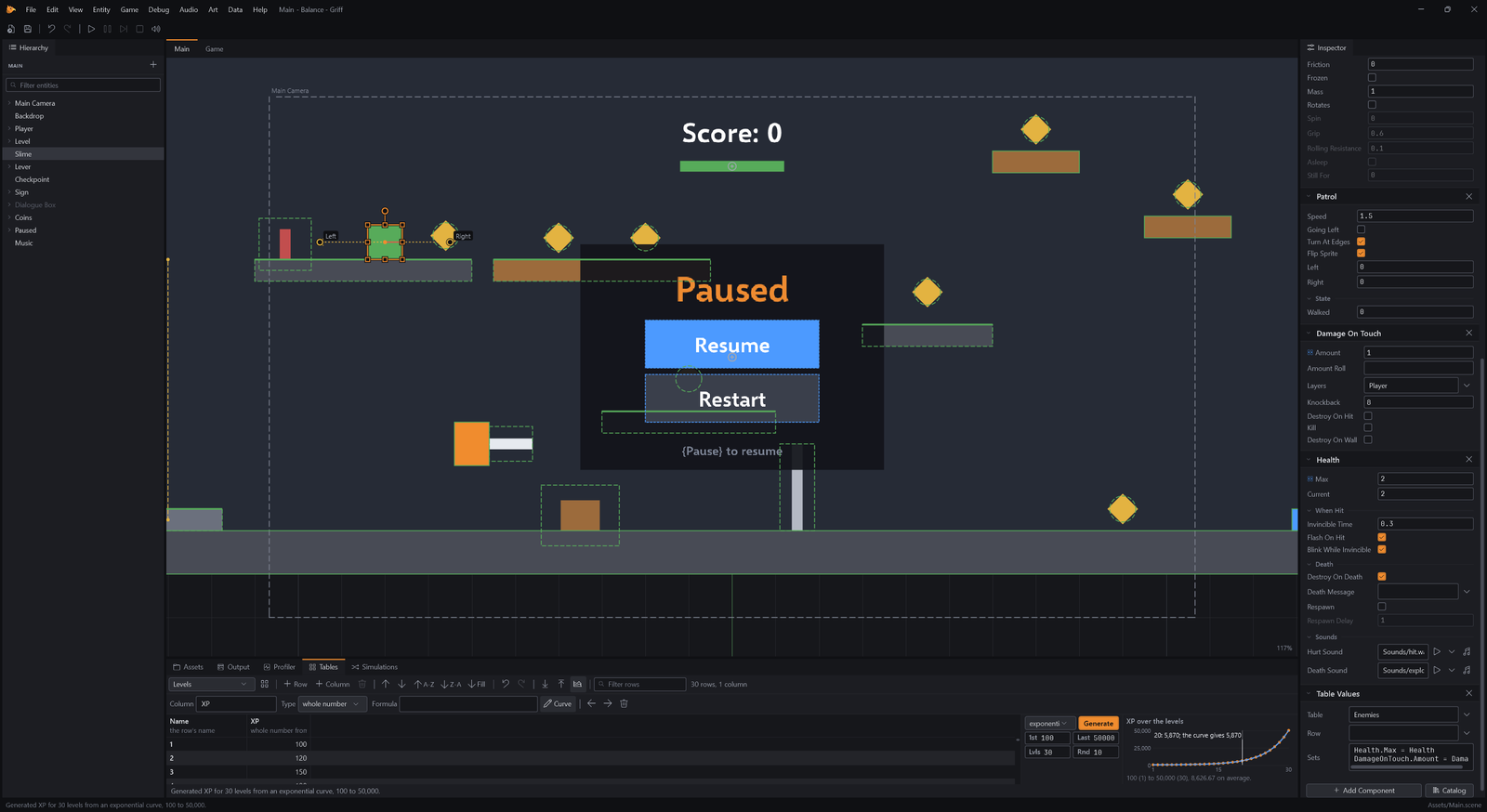
Generate fills the column, a row for each level. It is one undo step, and the column keeps its curve so you can change it and generate again.
Formulas
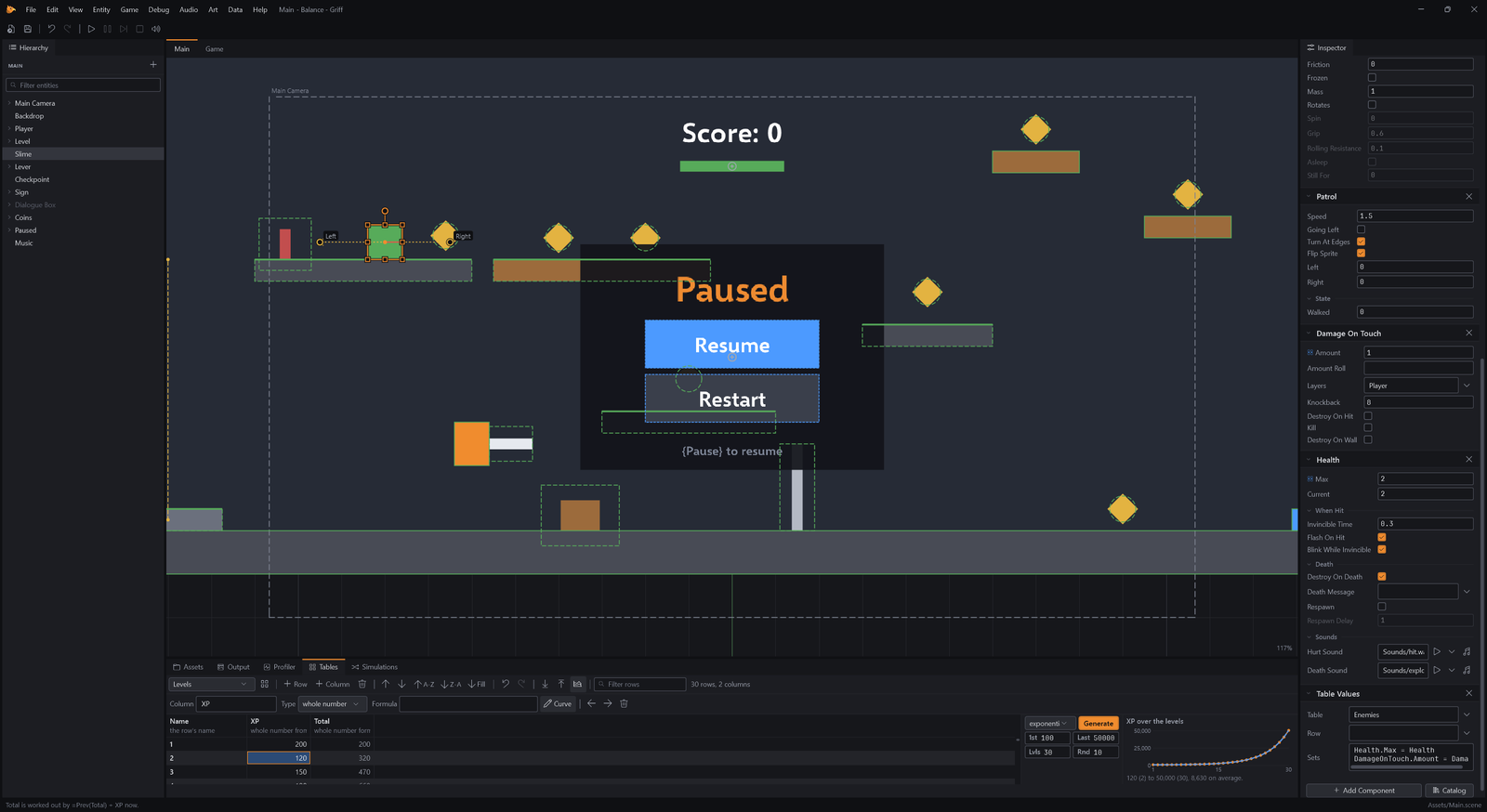
Section titled “Formulas”- Type a formula into any cell of the new column: =Prev(Total) + XP. It becomes the whole column’s.
A formula starts with an equals sign. It can use the other columns of its row, the rows around it, and other tables, with sums, lookups and dice. Total adds each level’s XP to the total above it, and every machine works it out the same way, to the last digit.
Change what a formula reads and it follows at once, here and in a running game. A name that is not there, or formulas that need each other in a loop, are flagged in the grid and said in the Output panel while the game runs. Nothing crashes.
Dice on the chart
Section titled “Dice on the chart”- Press Ctrl+A.
A dice column charts each level’s average as a dot, its range as a line from the least it rolls to the most, and its spread as a box: how far a roll usually lands from the average. A level where the box is much taller than its neighbours is a swingy fight, and one where the line jumps is a spike, so the outliers stand out before anyone plays.
Scripts read the same tables by row and column, and an agent edits them through the same panel and files with asset_write.
Does it hold up?
Section titled “Does it hold up?”- Copy the tutorial’s ready-made Classes.table and Enemies.table into the project’s Assets/Tables folder, and Arena.scene into Assets/Scenes, then open the Arena scene. The Enemies table gains gold and XP columns, and the Classes table works out a hero’s health from its level with a formula.
Numbers in a table are only half of balancing. The other half is what they do together. A simulation plays two sides of your game against each other thousands of times without drawing anything, by the game’s own rules. The arena is a scene with a hero and an enemy that take turns, each getting its health and damage from a table row.
- Choose Data → New Simulation….
- In the Simulations panel, set Runs to 300. Each class then plays each enemy 300 times, with random numbers from a seed, so the same seed plays the same fights on any machine.
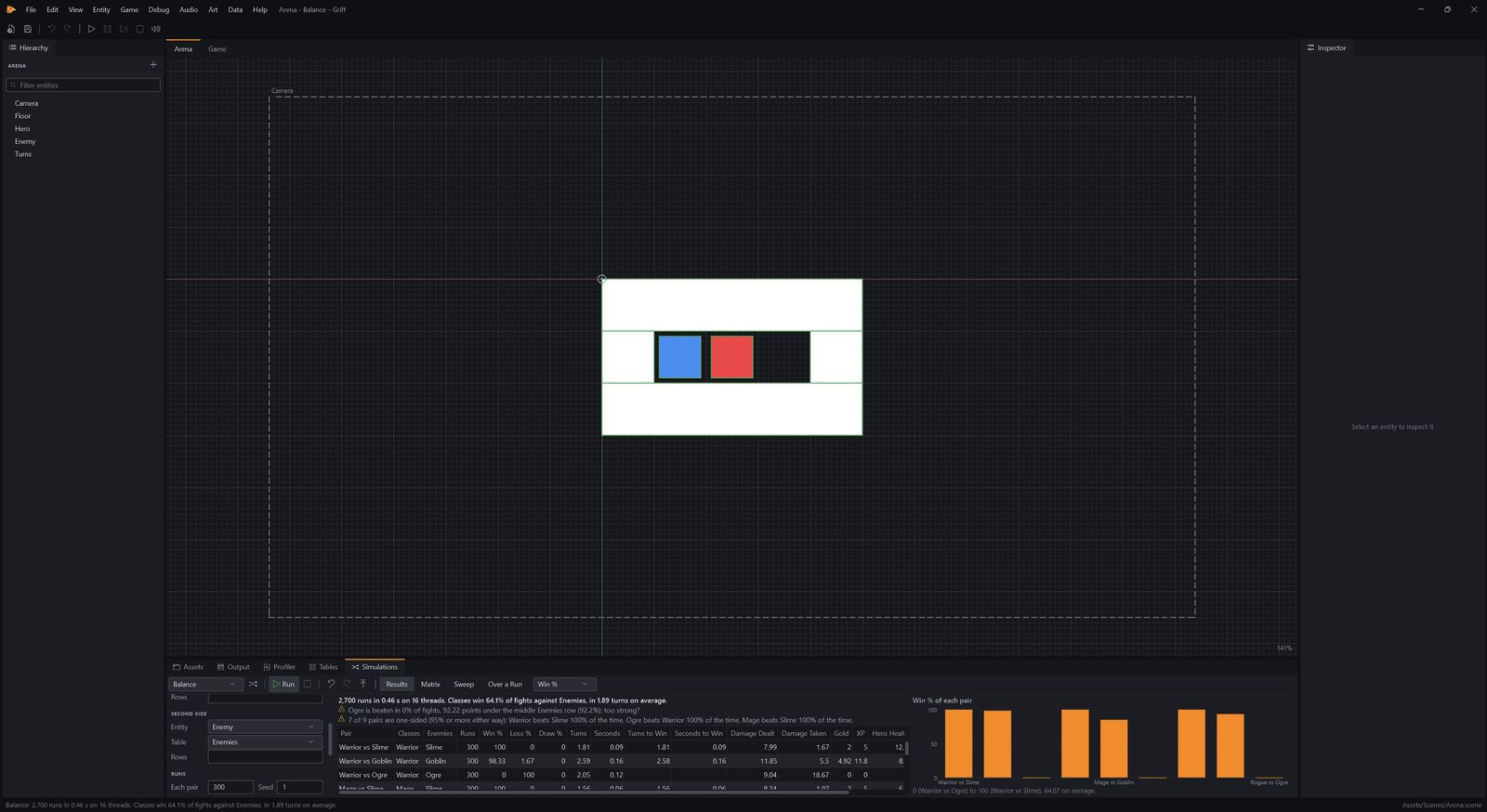
Nine pairs, 2,700 fights, in about a second. The panel says what stands out: here, that nobody beats the ogre at level one. Results come as a table of every pair with win rates, turns, damage and the gold and XP earned.
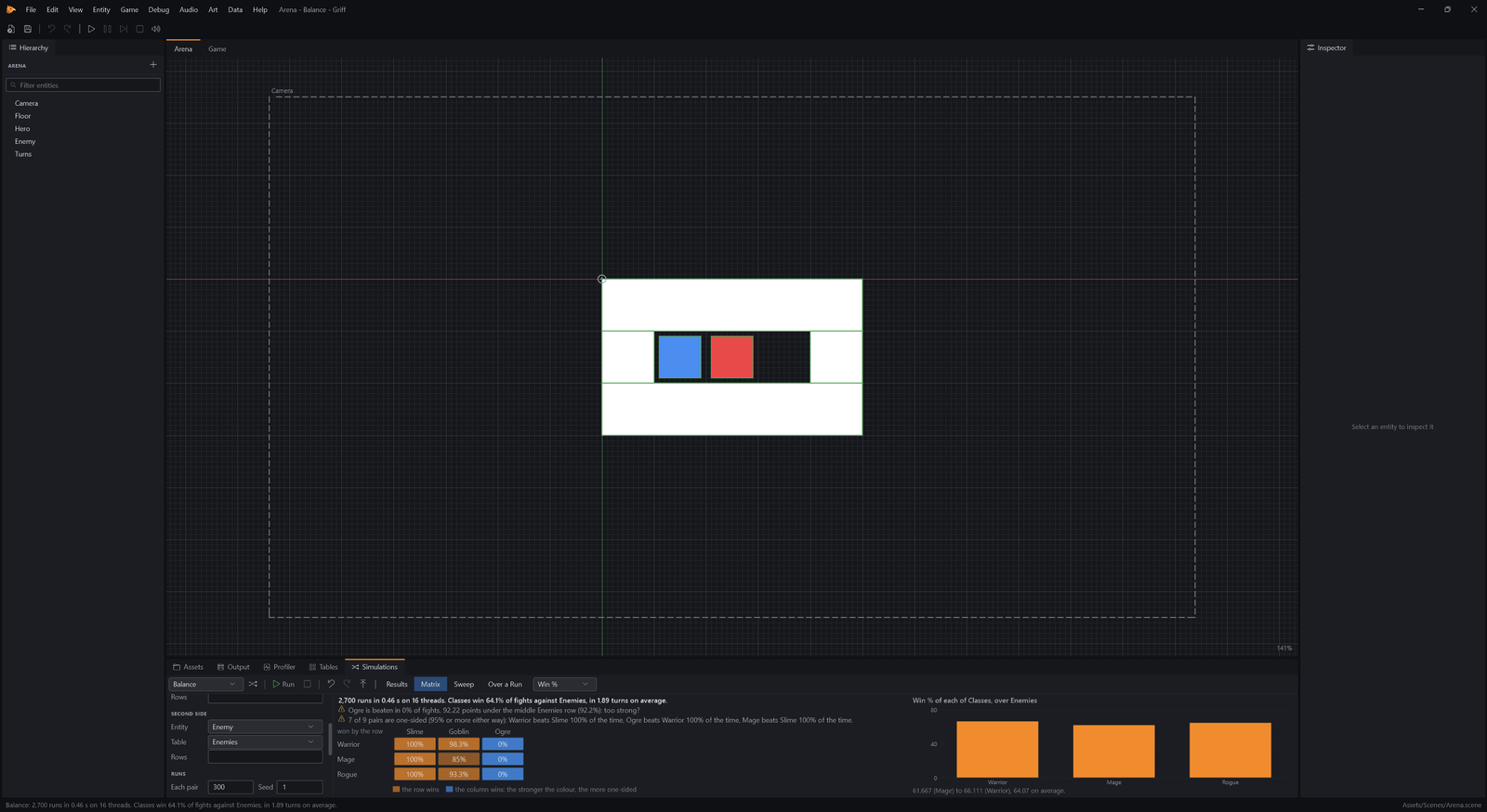
The matrix colours every pair by how one-sided it is: orange where the class wins, blue where the enemy does. A sweep changes a column by steps, such as each class’s level from one to eight, and shows where each class starts beating the ogre and which levels change nothing. Fix what stands out in the tables, run it again, and keep going until nothing does. Agents run simulations and read the results through the editor’s MCP.