
A top-down adventure
A dark dungeon lit by your lantern, a key, a locked door and a treasure behind it, all built from the Entity menu and the Inspector.
Make a project: File → New Project (Ctrl+Shift+N), name it Dungeon, pick the Empty template and Create.
A hero with a lantern
Section titled “A hero with a lantern”A top-down game looks down on the world, so there is no gravity and the hero moves in eight directions. Start from the Empty template and make the hero.
- Choose Entity → Characters → Top-down Player.
The Body has Gravity Scale 0, and Top Down Movement reads the arrow keys, WASD or the stick. Now make the room dark and give the hero a light to see by.
- Click Add Component and add Light.
- In the Inspector, set Light → Radius to
5. - In the Inspector, set Light → Shadows to
true. - Select Main Camera in the Hierarchy.
- In the Inspector, set Camera → Size to
6. - In the Inspector, set Camera → Ambient to
#4A5270.
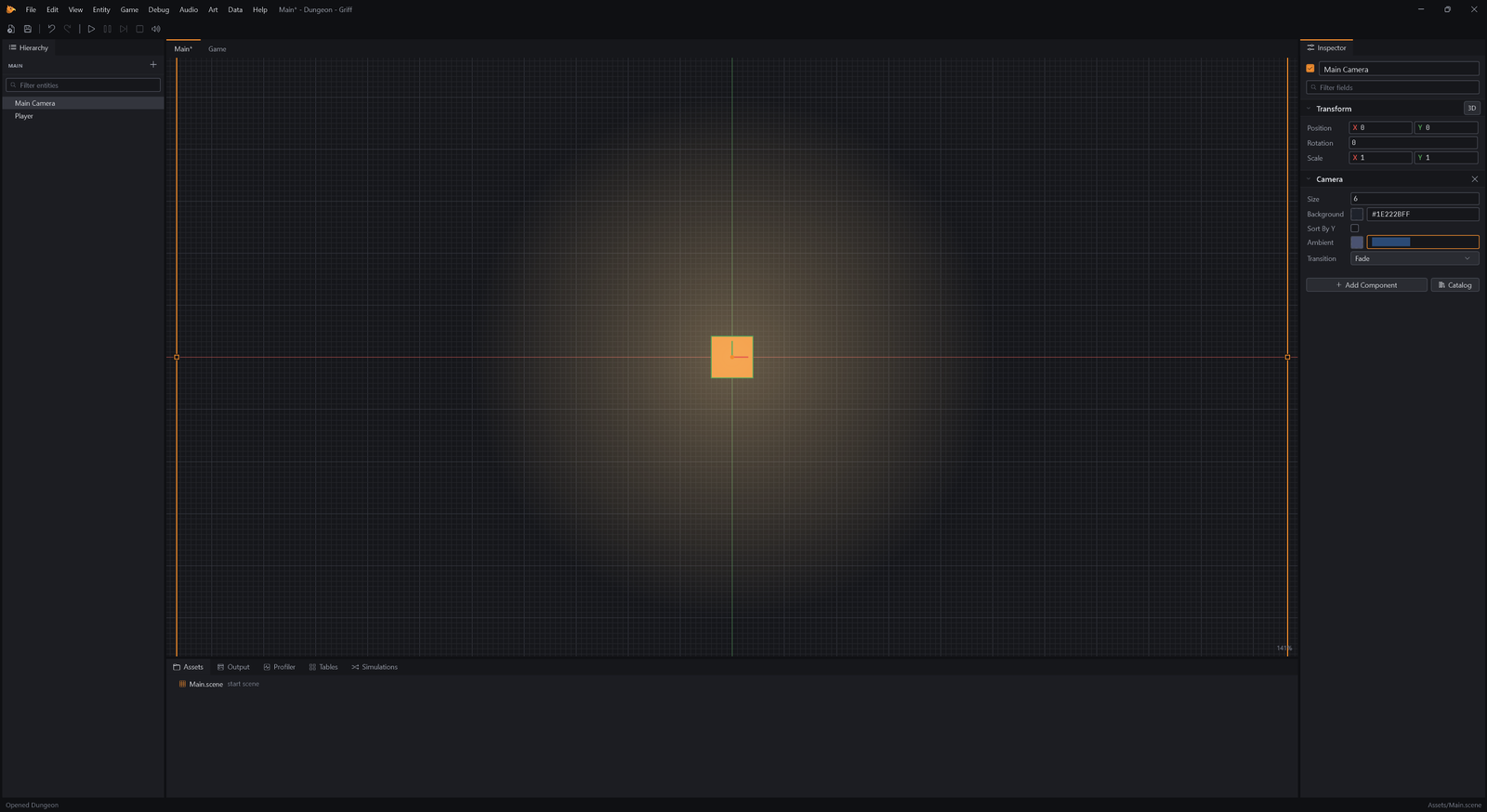
A camera’s Ambient color is the light a scene has everywhere. A dark blue one makes the room dim, and any Light brightens the part it reaches. With Shadows on, walls block it.
- Choose Entity → Basics → Sprite.
- Rename it Wall (F2).
- In the Inspector, set Transform → Position to
0, 5, 0. - In the Inspector, set Sprite → Size to
20, 1. - In the Inspector, set Sprite → Tint to
#484B55. - Click Add Component and add Box Collider.
- In the Inspector, set Box Collider → Size to
20, 1.
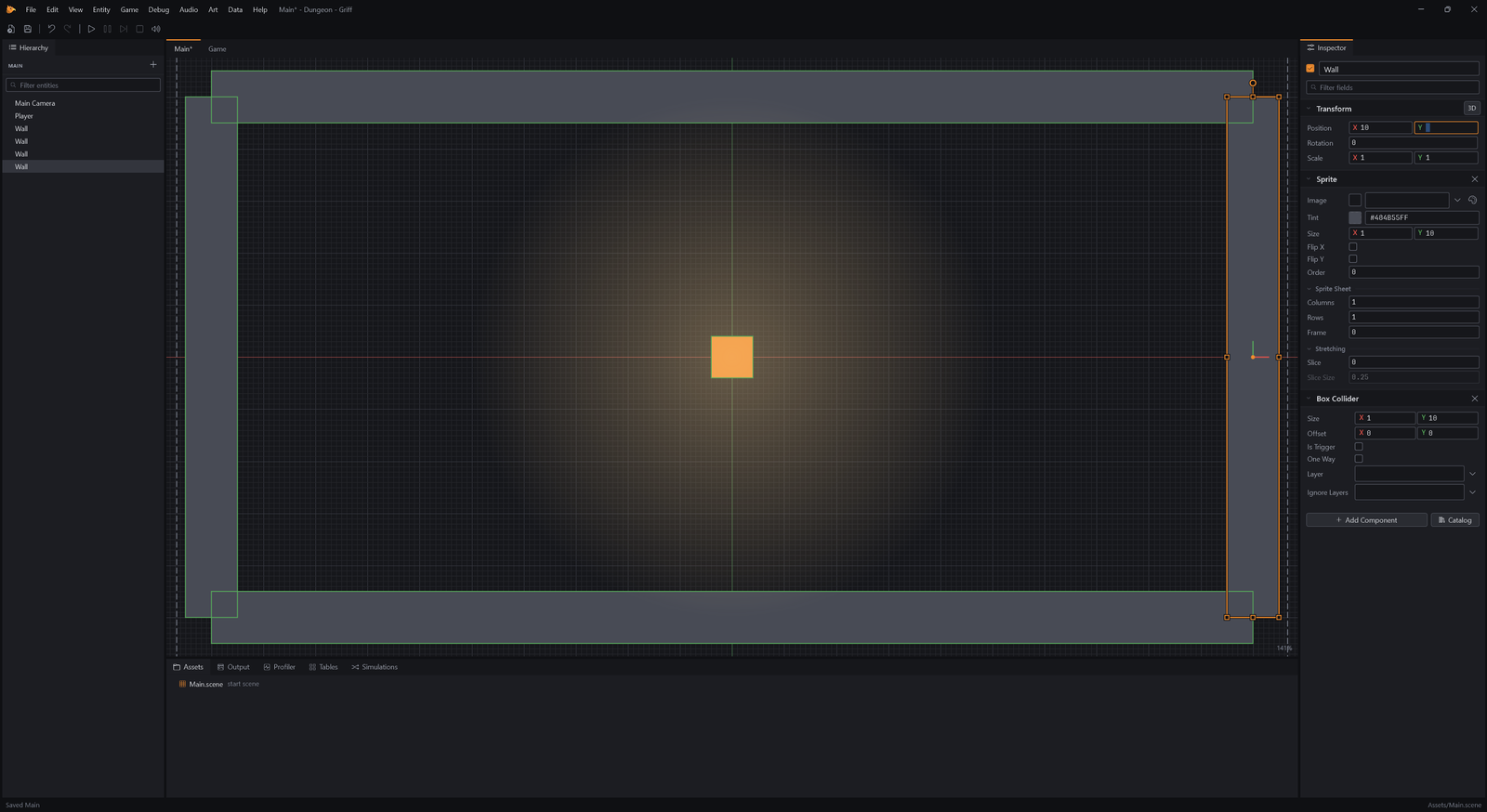
A wall is a sprite with a box collider. Make one, then copy it with Ctrl+D and move and resize each copy.
- Press Ctrl+D.
- In the Inspector, set Transform → Position to
0, -5, 0. - Press Ctrl+D.
- In the Inspector, set Transform → Position to
-10, 0, 0. - In the Inspector, set Sprite → Size to
1, 10. - In the Inspector, set Box Collider → Size to
1, 10. - Press Ctrl+D.
- In the Inspector, set Transform → Position to
10, 0, 0.
Four walls make a room. Press F5 and walk into them: the hero stops, and the lantern’s light stops at the walls too.
A locked door
Section titled “A locked door”- Choose Entity → Basics → Sprite.
- Rename it Divider Top (F2).
- In the Inspector, set Transform → Position to
3, 3.25, 0. - In the Inspector, set Sprite → Size to
0.5, 2.5. - In the Inspector, set Sprite → Tint to
#484B55. - Click Add Component and add Box Collider.
- In the Inspector, set Box Collider → Size to
0.5, 2.5. - Press Ctrl+D.
- Rename it Divider Bottom (F2).
- In the Inspector, set Transform → Position to
3, -3.25, 0. - Choose Entity → Basics → Sprite.
- Rename it Door (F2).
- In the Inspector, set Transform → Position to
3, 0, 0. - In the Inspector, set Sprite → Size to
0.5, 4. - In the Inspector, set Sprite → Tint to
#E3B341. - Click Add Component and add Box Collider.
- In the Inspector, set Box Collider → Size to
0.5, 4. - Click Add Component and add Switch.
- In the Inspector, set Switch → Mode to
Button. - In the Inspector, set Switch → Key to
Key. - In the Inspector, set Switch → Hides to
Door.
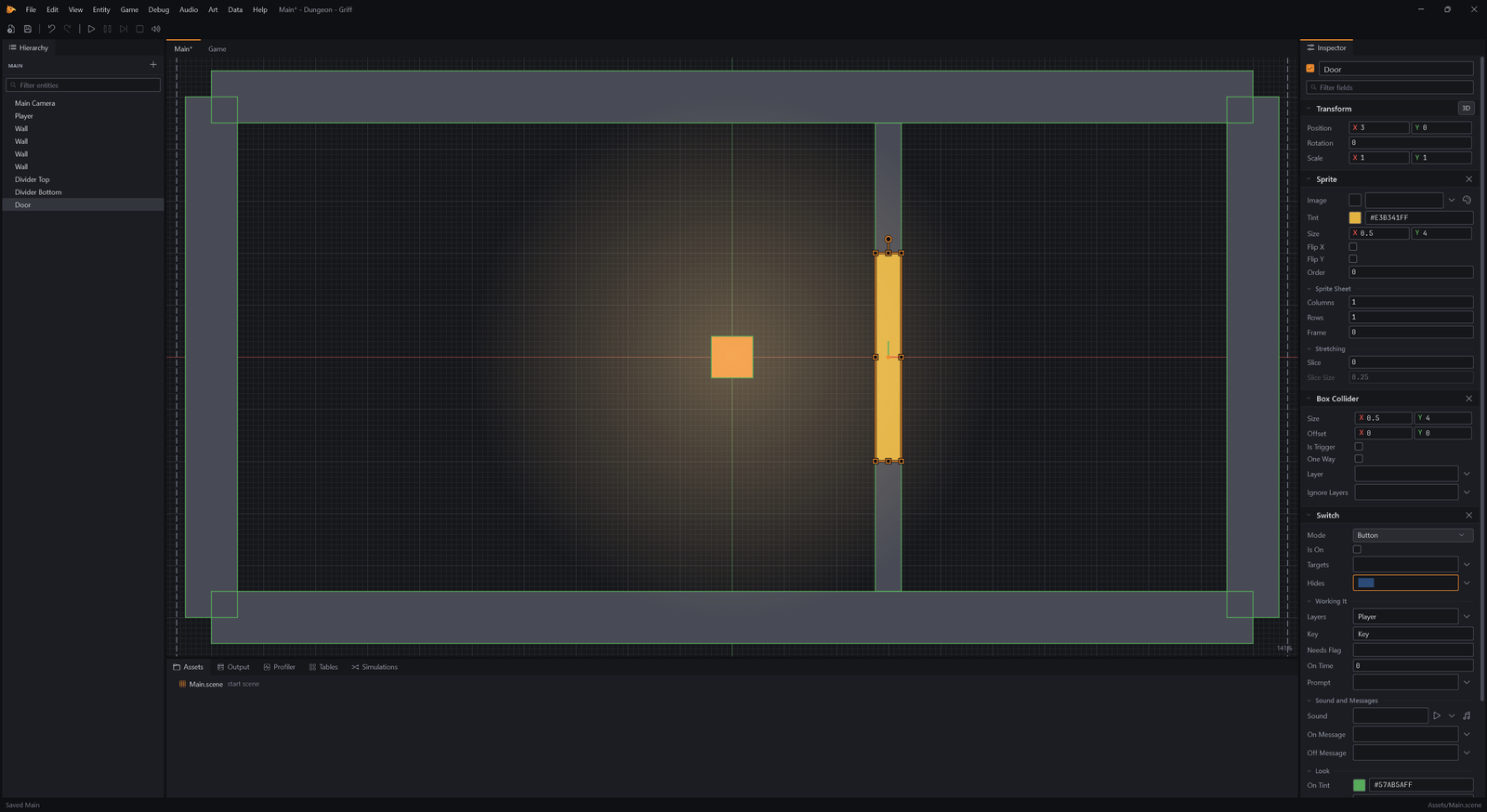
A wall with a gap in it, closed by a door. A Switch in Button mode turns on when something touches it, and one that has a Key only turns on for someone carrying that item. While it is on, it hides everything it names in Hides, and here that is the door itself.
The key and the treasure
Section titled “The key and the treasure”- Choose Entity → Basics → Sprite.
- Rename it Key (F2).
- In the Inspector, set Transform → Position to
-3, 0, 0. - In the Inspector, set Sprite → Size to
0.35, 0.6. - In the Inspector, set Sprite → Tint to
#E3B341. - Click Add Component and add Circle Collider.
- In the Inspector, set Circle Collider → Is Trigger to
true. - Click Add Component and add Pickup.
- In the Inspector, set Pickup → Layers to
Player. - In the Inspector, set Pickup → Item to
Key. - Choose Entity → Basics → Sprite.
- Rename it Treasure (F2).
- In the Inspector, set Transform → Position to
5.5, 0, 0. - In the Inspector, set Sprite → Size to
0.5, 0.5. - In the Inspector, set Sprite → Tint to
#57AB5A. - Click Add Component and add Circle Collider.
- In the Inspector, set Circle Collider → Is Trigger to
true. - Click Add Component and add Pickup.
- In the Inspector, set Pickup → Layers to
Player. - In the Inspector, set Pickup → Amount to
5.
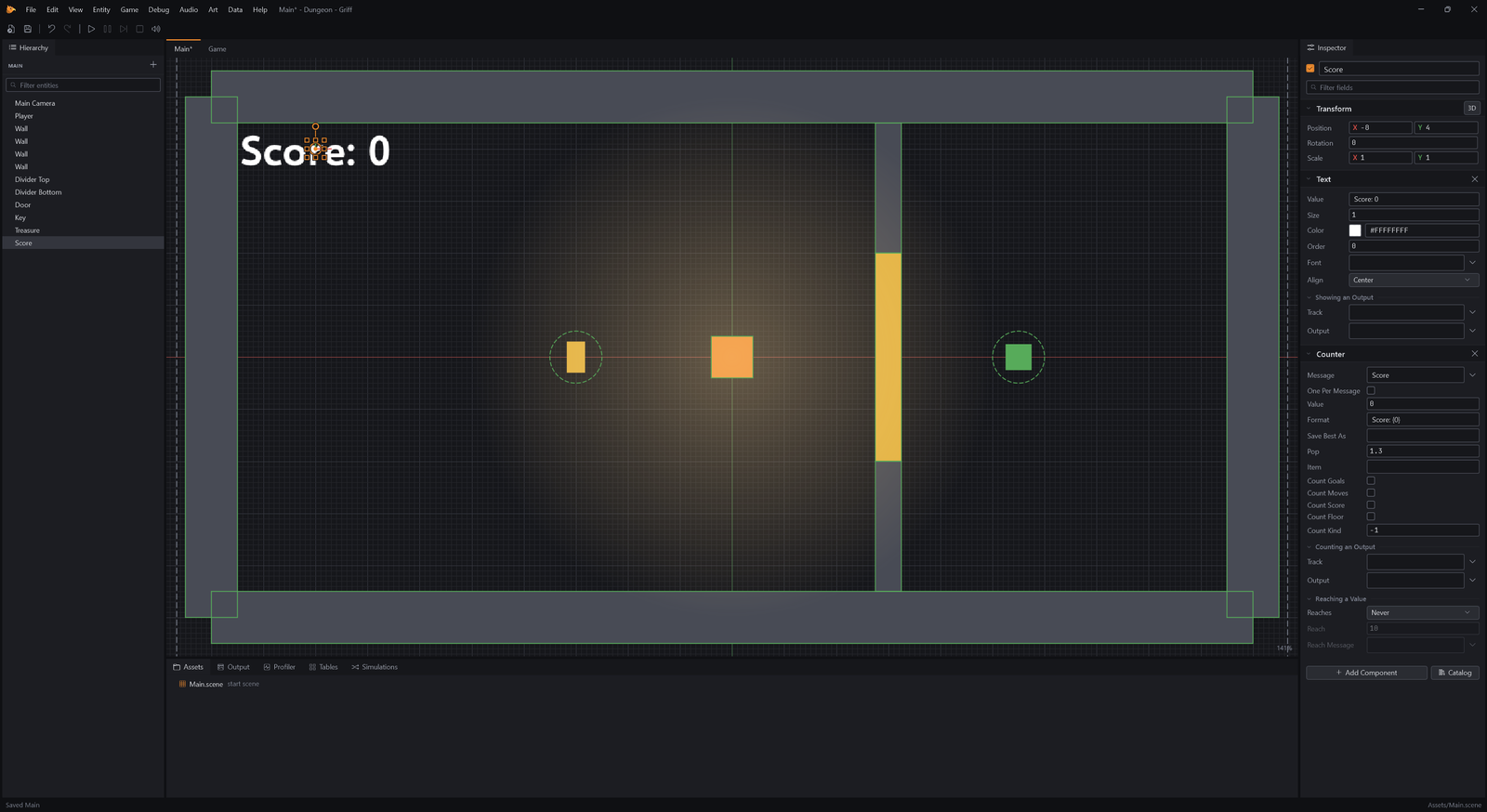
A Pickup with an Item puts it in the hero’s pockets when they touch it. The key is that item, so the door will open for whoever picked it up. The treasure is worth five points.
- Choose Entity → Basics → Text.
- Rename it Score (F2).
- In the Inspector, set Transform → Position to
-8, 4, 0. - In the Inspector, set Text → Value to
Score: 0. - Click Add Component and add Counter.
- Choose Entity → Basics → Sprite.
- Rename it Bat (F2).
- In the Inspector, set Transform → Position to
8, 3.5, 0. - In the Inspector, set Sprite → Size to
0.7, 0.5. - In the Inspector, set Sprite → Tint to
#9B6BD6. - Click Add Component and add Chase.
- In the Inspector, set Chase → Range to
3. - In the Inspector, set Chase → Needs Sight to
true. - Click Add Component and add Damage On Touch.
- In the Inspector, set Damage On Touch → Layers to
Player. - Select Player in the Hierarchy.
- Click Add Component and add Health.
A Chase follows the hero once it is near and can see them, and gives up when they get away. Needs Sight makes the walls hide the hero from it. The hero needs Health to be hurt, three hits by default.
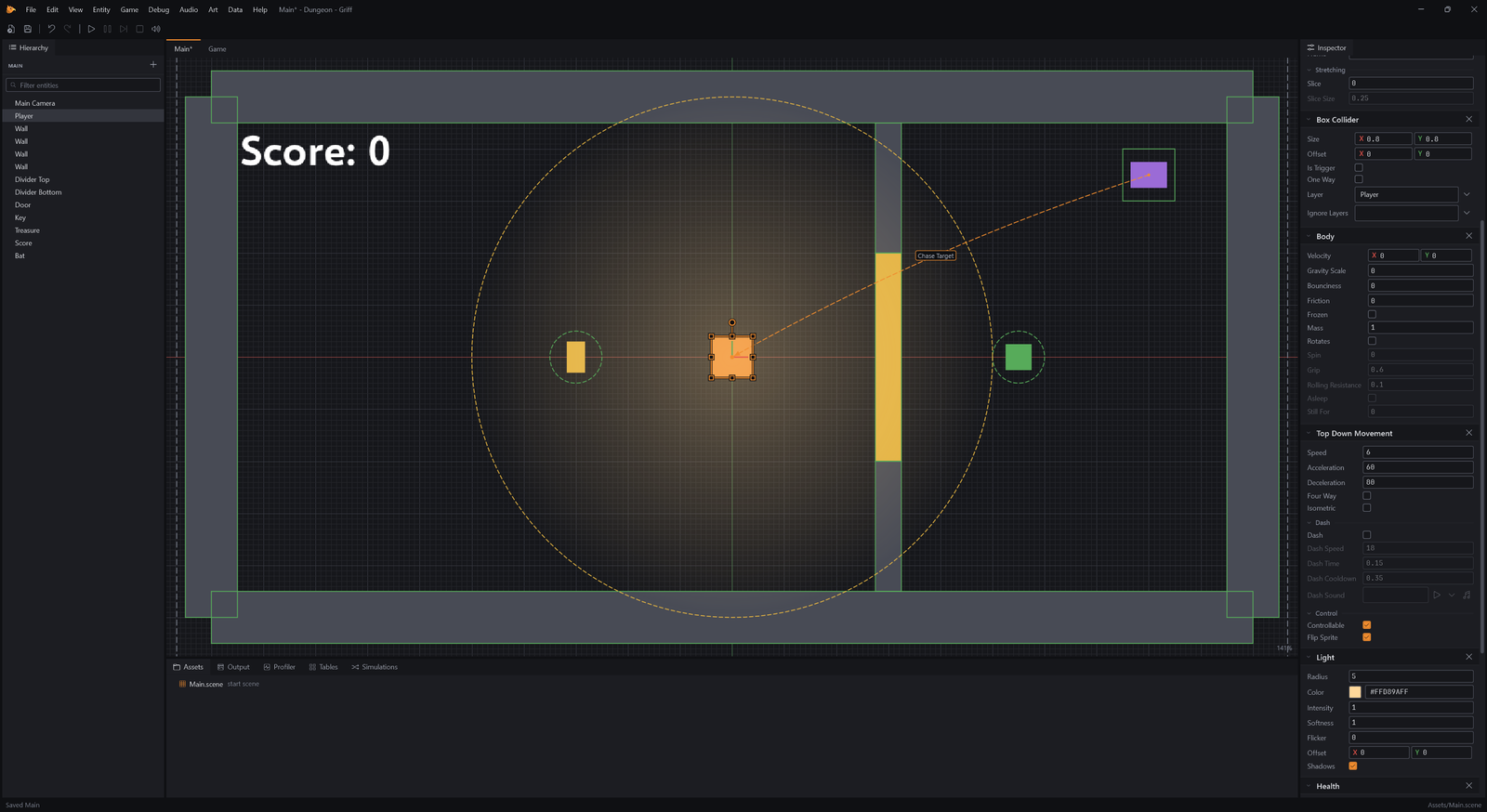
Play it
Section titled “Play it”- Press F5 to play.
- In the game, hold Right for 3 seconds.
Run for the door first and it stays shut: the hero has no key yet.
- In the game, hold Left for 6 seconds.
Fetch the key from the left of the room.
- In the game, hold Right for 10 seconds.
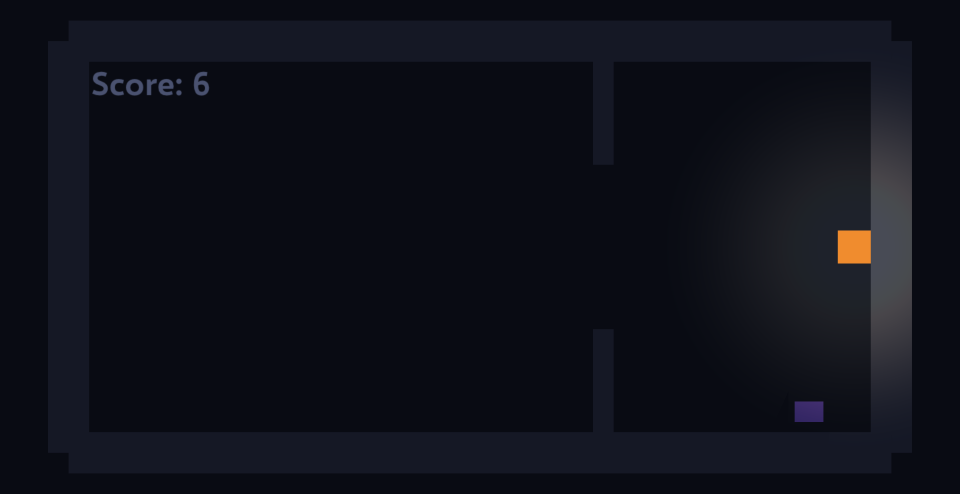
With the key the door opens as the hero touches it, and the treasure is theirs: one point for the key, which scores like any pickup, and five for the treasure.
- Press Shift+F5 to stop.
That is a small adventure. Add Dialogue Boxes for talking, portals between rooms, and more rooms of your own, each a scene.