
A crate-pushing puzzle
Sokoban with no code: a worker pushes crates onto marks, takes moves back, and a panel opens when every mark is covered.
Make a project: File → New Project (Ctrl+Shift+N), name it Crate Push, pick the Empty template and Create.
A room
Section titled “A room”- Choose Entity → Level → Tilemap.
- Rename it Level (F2).
- In the Inspector, set Tilemap → Tiles to
11111111\n1......1\n1.11...1\n1......1\n11111111. - Select Main Camera in the Hierarchy.
- In the Inspector, set Transform → Position → X to
4. - In the Inspector, set Transform → Position → Y to
-2.5.
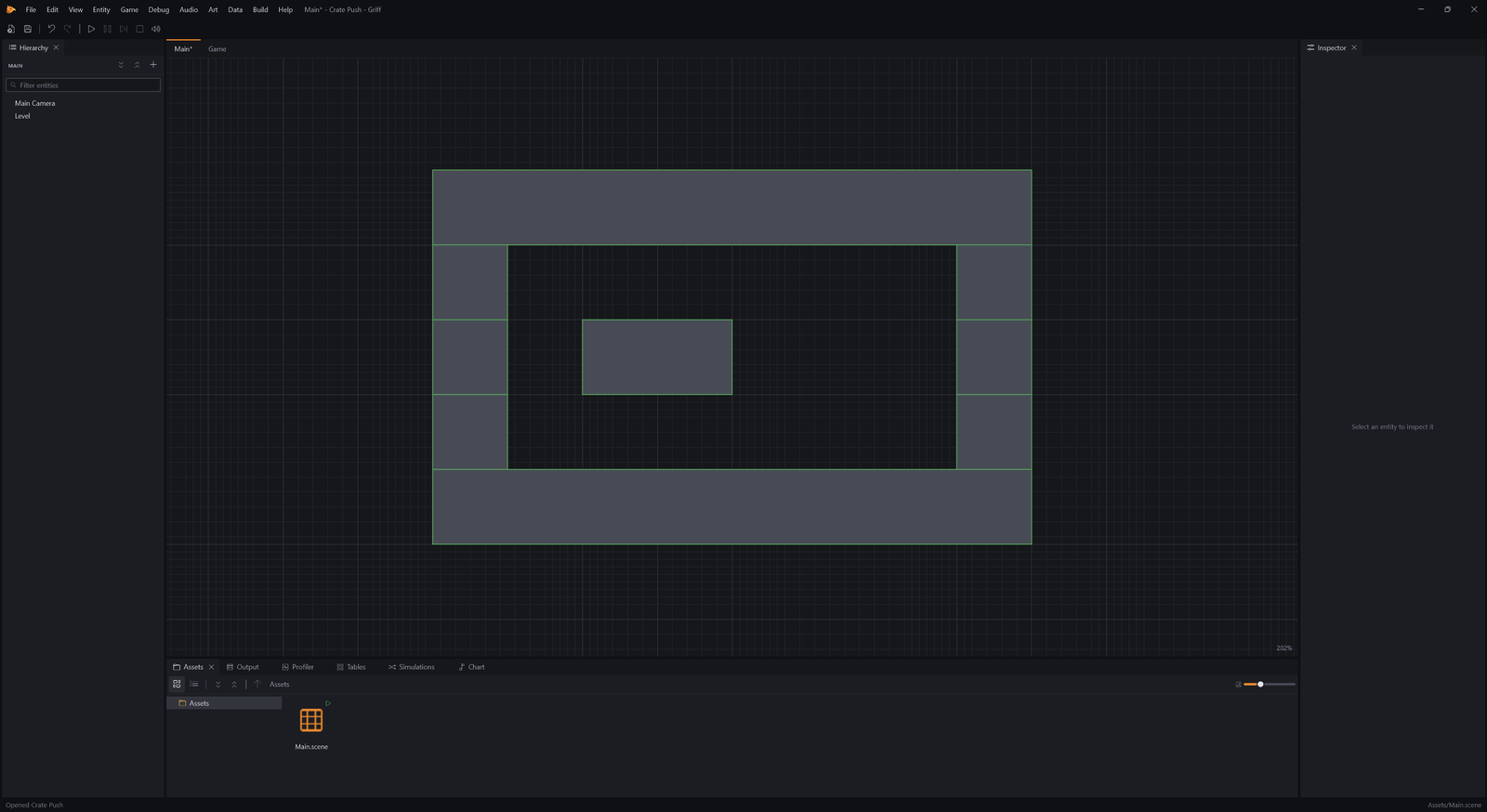
A tilemap is a grid of tiles, and each number in Tiles is one: 1 is a wall and a dot is empty floor. Typing the rows is the quickest way to lay out a small level. The camera is moved over the room.
A worker
Section titled “A worker”- Choose Entity → Characters → Grid Player.
- In the Inspector, set Transform → Position → X to
1.5. - In the Inspector, set Transform → Position → Y to
-1.5.
A grid player steps from cell to cell, one press for one step, and the tilemap’s walls stop it.
Crates and goals
Section titled “Crates and goals”- Choose Entity → Physics → Crate.
- Rename it Crate A (F2).
- In the Inspector, set Transform → Position → X to
3.5. - In the Inspector, set Transform → Position → Y to
-1.5. - Choose Entity → Physics → Crate.
- Rename it Crate B (F2).
- In the Inspector, set Transform → Position → X to
2.5. - In the Inspector, set Transform → Position → Y to
-3.5.
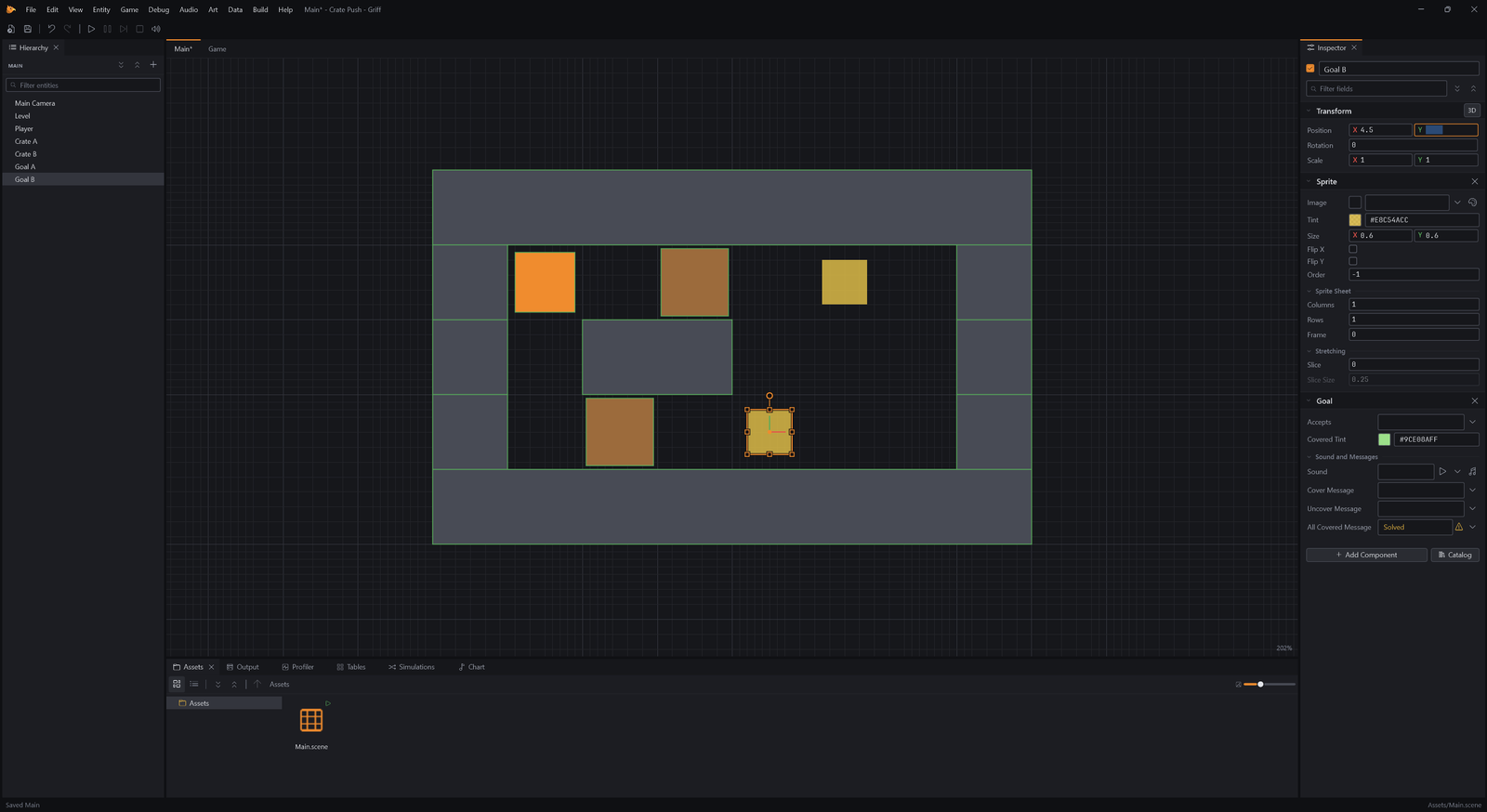
In a scene with a grid player, the crate is made for the grid: a Pushable that slides one cell when the player steps into it, as long as the cell beyond is free.
- Choose Entity → Genres → Puzzles → Goal.
- Rename it Goal A (F2).
- In the Inspector, set Transform → Position → X to
5.5. - In the Inspector, set Transform → Position → Y to
-1.5. - Choose Entity → Genres → Puzzles → Goal.
- Rename it Goal B (F2).
- In the Inspector, set Transform → Position → X to
4.5. - In the Inspector, set Transform → Position → Y to
-3.5.
A goal is a mark on the floor. It is covered while a crate rests on it, and every goal with the same All Covered Message sends it once they are all covered. That message is the level solved.
Counting
Section titled “Counting”- Choose Entity → Basics → Text.
- Rename it Crates (F2).
- Click Add Component and add Screen Anchor.
- In the Inspector, set Screen Anchor → Anchor to
TopLeft. - In the Inspector, set Screen Anchor → Offset to
3.5, -0.7. - Click Add Component and add Counter.
- In the Inspector, set Counter → Track to
*. - In the Inspector, set Counter → Output to
Goals Covered. - In the Inspector, set Counter → Format to
Crates: {0} / {2}.
A Counter can count an output instead of a message, here the goals covered. {0} is how many are covered and {2} how many there are, and a Screen Anchor keeps it in the corner of the screen.
Solved
Section titled “Solved”- Choose Entity → UI → Panel.
- Rename it Solved (F2).
- In the Inspector, set Panel → Open Message to
Solved. - Choose Entity → Basics → Text.
- Rename it Well Done (F2).
- In the Inspector, set Text → Value to
Solved!.
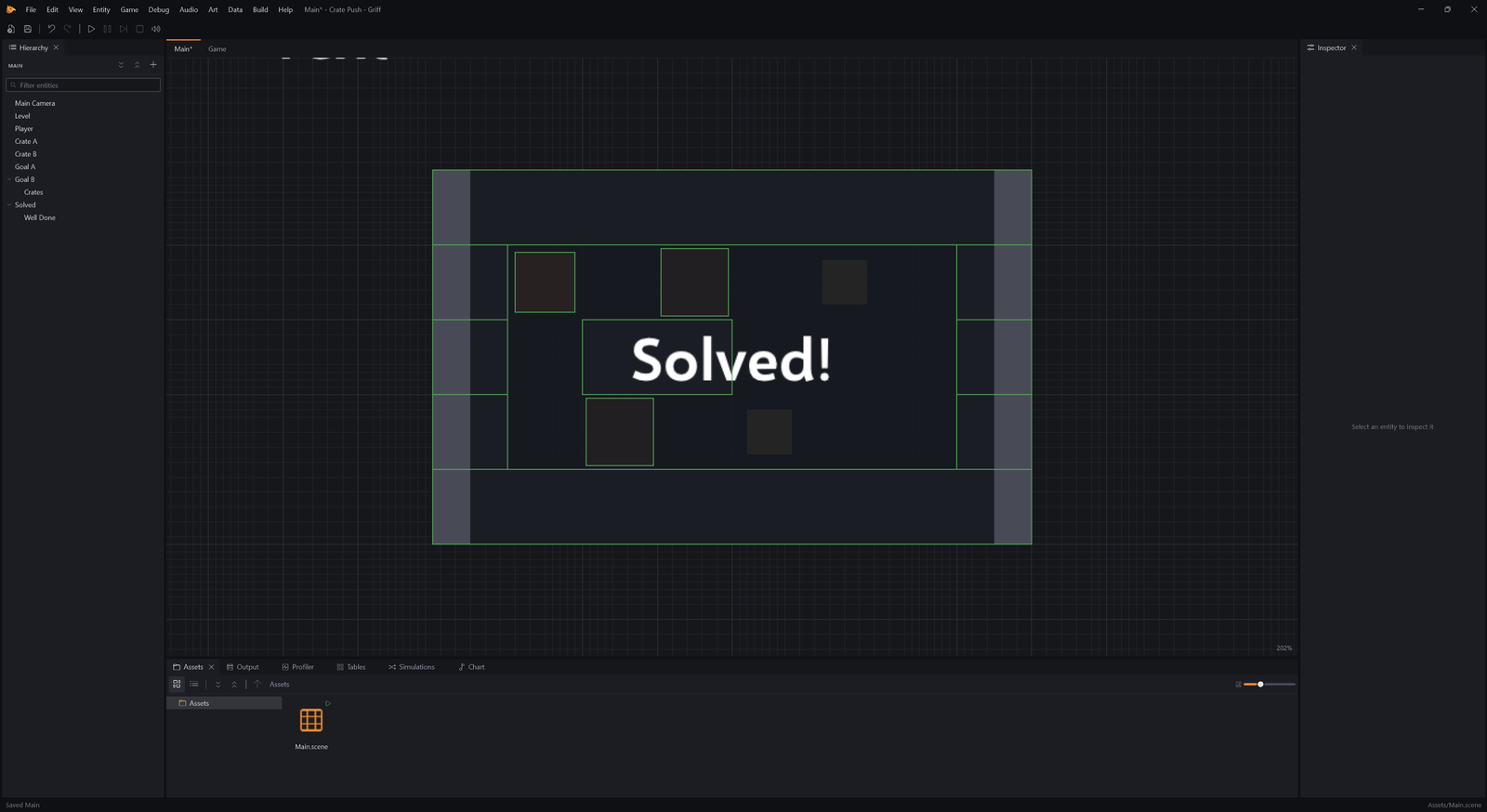
A Panel stays hidden until something opens it. Its Open Message is the message that does: when the goals send Solved, it appears, and the game behind it stops. The text was made with the panel selected, so it is inside it.
Play it
Section titled “Play it”- Press F5 to play.
- In the game, press Right.
- In the game, press Right.
- In the game, press Right.
Walk into a crate and it slides ahead of you. On its goal it turns green and the counter goes up.
- In the game, press Z.
Z takes the last move back, crate and all, and R starts the level over. The first goal you create brings a Move History along to do that.
- In the game, press Right.
- In the game, press Left.
- In the game, press Left.
- In the game, press Left.
- In the game, press Down.
- In the game, press Down.
- In the game, press Right.
- In the game, press Right.
- Press Shift+F5 to stop.
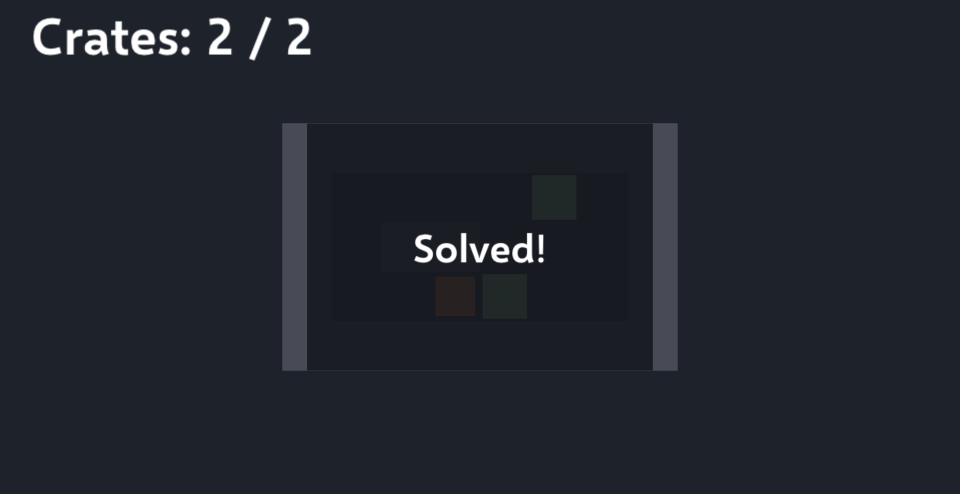
Both crates are home, so the goals sent Solved and the panel opened. To make more levels, duplicate the scene and repaint the tilemap.